Define a bookable service
Name the service and explain its inclusions, duration and price structure. In EZ Customers, services and offerings let you present different booking lengths and deliverables. Use the actual time needed for the service rather than giving every appointment the same length. Set the hours and notice that fit your work, and block time you cannot offer to clients.
Decide whether to take a deposit at booking
Decide whether to take a deposit at booking
For an appointment that occupies most of your day, decide whether the client should pay a deposit when booking. EZ Customers supports collecting a deposit during booking when payments are configured. State the amount and cancellation terms clearly. This is a way to ask for an upfront commitment, not a promise to prevent every no-show or automatically charge a cancellation fee.
Collect the information that changes the appointment
Attach an intake form to the service. Ask for references and requirements that affect preparation or scope, then review the request before accepting work you cannot fit. Keep sensitive or irrelevant questions out of a general enquiry form.
When someone books for another person
The person arranging an appointment, the person attending and the person paying may be different. Before choosing software or confirming the booking, write down these five checks:
- Name the roles: identify the booking contact, attendee and payer. One person may fill several roles; collect only the details needed for the service.
- Choose the message recipients: agree who needs the confirmation, preparation instructions and reminders. Check each message type rather than assuming every email goes to everyone.
- Agree who can request changes: test who can view, move or cancel the appointment and whether staff must help. Receiving a reminder does not by itself establish account access.
- Check payment separately: identify who should receive the payment request or receipt. A different payer does not automatically need the attendee’s intake answers or private notes.
- Rehearse each view: use fictional details to check what each person can see and do. Record unsupported steps before using the workflow with clients.
Check recipients and permissions separately
Check recipients and permissions separately
Acuity documents sending appointment notifications to multiple email addresses. That alone does not establish separate billing or account access. Jane’s Relationships documentation lists booking, payment, intake and notification permissions separately; review the precise access each permission grants. These are provider-specific examples, not evidence that EZ Customers offers the same relationship controls.
Confirm changes in one place
Treat a request to move an appointment as a change to verify, not a confirmed new booking. Use this check before telling the client the move is complete:
- Identify the appointment: record its original date and time, and whether the client wants to move one visit or a whole series.
- Check the new slot: confirm the full date, time zone, duration, location and person doing the work, including preparation or travel time.
- Update the booking record: check that the old slot is no longer reserved for that appointment and the new slot is correctly occupied. Review any connected calendar separately.
- Check the client message and reminders: verify that the confirmation gives the new details and that pending reminders no longer point to the old time.
- Review the next step: check any payment or preparation arrangement separately. Moving an appointment does not prove a refund, new charge or package adjustment occurred.
Test rescheduling before choosing a tool
Test rescheduling before choosing a tool
Use one fictional appointment to test the client and staff views. Try a change inside the permitted notice period, a late request, and a single visit from a repeating schedule if that matters to your business. Record which steps are automatic and which need staff help.
The controls differ by provider. Acuity's client instructions say clients reschedule appointments individually and cannot change the appointment type or calendar themselves. Calendly's instructions distinguish rescheduling in Calendly from changing an event in Google Calendar, which requires its automatic rescheduling setting. Check the linked documentation and your actual setup; these examples do not establish the same behavior in EZ.
When appointment times look different
When appointment times look different
Before moving an appointment, check whether the booking and calendar show the same appointment in different local times. Compare the full date and named time zone, not just the clock time.
The controls differ by provider. Acuity documents staff notifications in the business time zone and client notifications in the client’s selected zone. Calendly documents a separate invitee-calendar display and an event-type option to lock the time zone. These examples do not establish the same controls in EZ Customers.
- Identify the booking: match the service, attendee and full appointment date across the records.
- Compare the displays: check the booking record, client confirmation and calendar or device time zones.
- Confirm attendance: agree on the venue or online joining link and the time the client should arrive.
- Check before changing: follow the provider’s instructions, then verify the saved booking and messages after any actual move.
Close with an explicit next step
Use payment requests and file delivery where relevant, and explain what the client should do next. For services without digital deliverables, a completed appointment and clear repeat-booking path may be enough.
Worked examples
Use these fictional situations to rehearse the steps.
IN PRACTICE
Worked example: a coordinator books a consultation
Fictional example: a coordinator arranges a consultation for a colleague, while a finance contact handles payment. Agree who receives the appointment details, who can request a change and where the payment request goes. Rehearse those views separately. If the tool cannot separate them, agree a clear staff-managed process or compare a product that supports the required permissions; do not promise automatic access separation.
IN PRACTICE
Worked example: move one weekly lesson
Fictional example: a client wants to move this Tuesday's lesson to Thursday while keeping later Tuesdays. Identify that one lesson, confirm Thursday's availability and update its record. Then check that the original Tuesday slot is released, later lessons stay unchanged, and the client sees Thursday in the confirmation and reminder. This is a rehearsal checklist, not a claim that EZ automatically manages recurring lessons.
Examples by business
Start with the shared steps above, then check the requirements that apply to your service.
EZ Customers connects the booking basics for many independent services. If your business depends on route optimization, recurring-job automation, parent portals or package drawdowns, test those specialist workflows separately before choosing it.
Cleaning businesses
For a cleaning business: plan the visit and the travel
A cleaner can define a one-off or deep-clean service, ask about the home before accepting the request, assign the work and reserve a realistic appointment length. Block unavailable time for travel or reset and request a deposit for a long job when payments are configured. If your day depends on automatic routes, recurring-job dispatch, two-person crew synchronization or tax-specific invoicing, verify those separately in a live trial; a booking calendar alone does not prove them.
Can EZ Customers manage bookings for a residential cleaning business?
It can organize defined cleaning services, client intake, booking lengths, blocked unavailable time, team work and deposits at booking when payments are configured. Test recurring-job automation, route planning, crew dispatch and the exact invoicing/tax workflow you need before replacing a field-service system.
Tutors
For a tutor: separate the student from the booking
A tutor can offer a consultation or lesson, ask about subject and goals in intake, and keep client notes with the booking. Decide whether the parent or the student is the account holder and avoid collecting unnecessary sensitive details. If you need automatic weekly reservations, a parent portal, attendance records or academic progress tracking, test a tutoring-specific product alongside EZ.
- Start with one lesson: agree on the subject, level and a specific goal. Ask what the learner should bring and what the first session will cover.
- Put the full price in writing: confirm lesson length, the fee, any materials and whether payment is per lesson or in advance.
- Confirm the dates: write down the weekly time and time zone, when the series ends or is reviewed, and which holidays or breaks to skip.
- Agree on missed lessons: state how much notice each side needs, whether a make-up is possible, and who to contact when one date needs to change.
Is EZ Customers a good fit for a private tutor with weekly students?
It can handle a bookable lesson or consultation, intake and client records. Confirm how you will manage repeating weekly slots, parent and student access, attendance and lesson progress. If those are central, compare a dedicated tutoring platform.
Personal trainers
For a trainer: check how packages are consumed
A personal trainer can describe a session, collect preparation questions, set availability and take a booking payment. Keep professional health screening and waivers in an appropriate process. If you sell multi-session packages, verify whether each session is automatically deducted and whether workout programming or client progress tools are required; do not assume ordinary booking and payment features cover them.
Can a personal trainer sell session packages through EZ Customers?
EZ can set up bookable services and payment flows, but this guide does not establish automatic package balances or session drawdowns. Test that exact workflow before selling a package in any system; use a fitness-specific tool if workout programming or progress tracking is essential.
For braiding appointments, see the hair-business questions and timing guidance.
PUT THE GUIDE TO USE
Your checklist & plan
Check what is ready. Open the planning notes when you want to write out your next steps.
YOUR NEXT STEP
A checklist you can use
Use it here or save a plain-text copy. Your selections stay in this page only.
Write your plan: Booking rehearsal
MAKE IT YOUR OWN
Booking rehearsal
Use the example as a starting point, then write your own plan. Notes stay in this page; save a copy before leaving. Use placeholders for client details.
See a worked example
Fictional planning example—not a customer result or a service standard.
- Offer
- Portrait session: one person, one location, agreed image selection.
- Information needed
- Requested date, intended image use and location access.
- People and messages
- For a fictional booking, name the booking contact, attendee and payer. Check who receives reminders and payment requests, and who can view or change the appointment.
- Confirmation
- Review scope and availability, then confirm the agreed service and time.
- Change rehearsal
- For a fictional booking, compare the full date and named time zone in the booking, client message and calendar before moving it. Then check the old slot, new time, later visits and reminders; record any staff steps needed.
- Close the loop
- Check the payment request and final-file handoff against the booking.
- Offer
- [Fill in]
- Information needed
- [Fill in]
- People and messages
- [Fill in]
- Confirmation
- [Fill in]
- Change rehearsal
- [Fill in]
- Close the loop
- [Fill in]
Questions about this task
Can I book an appointment for someone else?
Check whether the tool supports booking on another person’s behalf. Record who is arranging the visit, who will attend and who will pay, then agree who receives updates and can request changes. Test the actual account and reminder views with fictional details before using the process with clients.
Does adding a guest email give access to billing or client records?
Do not assume it does, or that it keeps those records separate. Notification recipients and account permissions are different settings. Check the provider’s documentation and the actual recipient view, including payment requests, intake answers and appointment changes. Do not use a shared email field as proof of separate permissions.
How do I move one appointment without changing a whole series?
Identify the original appointment and use the control for that visit, if the tool provides one. After saving, inspect the old slot, new slot and later appointments before confirming the change to the client. If the effect on the series is unclear, resolve it before saving. Test this with fictional bookings before using it for clients.
Does moving an event in my calendar update the booking too?
Do not assume it does. Check the booking system's documented sync direction and settings, then verify the booking record, client confirmation and reminders. For example, Calendly documents a separate automatic rescheduling setting for changes made in Google Calendar; that is not evidence that every connected calendar works the same way.
Why do my booking and calendar show different appointment times?
Check the exact appointment date and the time zone used by each view. A booking page, client confirmation and connected calendar may display the same appointment in different local times. Check the provider’s instructions before changing or cancelling the booking, then verify the saved record and messages.
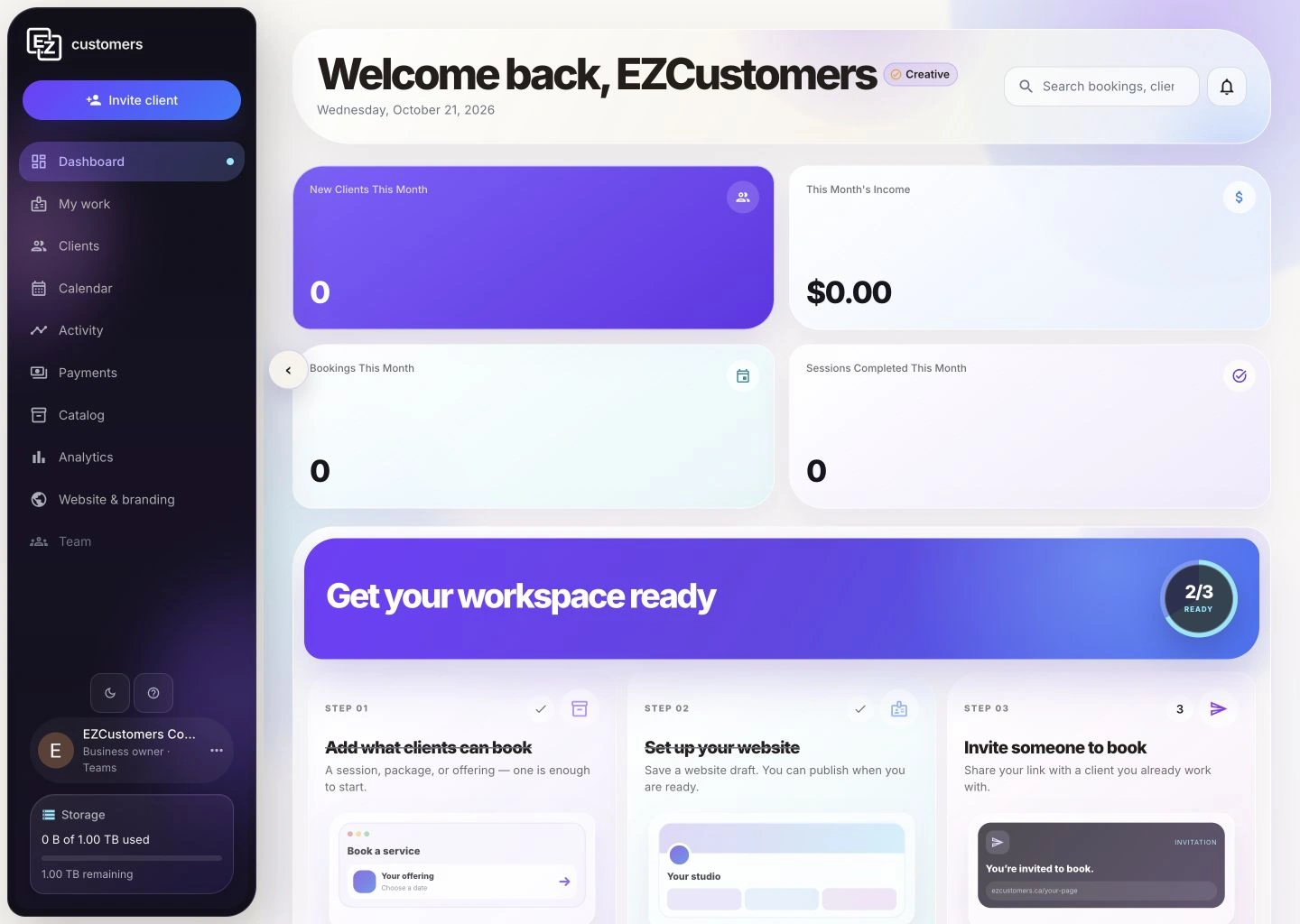
See the EZ Customers workspace
Sources & editorial method
Prepared by EZ Customers from official provider pages and public question research. Provider descriptions are a dated selection, not a ranking, endorsement or first-hand review. Planning checklists and worked examples are original editorial material; they are not treatment instructions, legal templates or proof of professional qualification. Confirm current intake, pricing, campus, stock and eligibility directly. No affiliate links or paid placements are included.
- EZ Customers — business features ↗ · checked 2026-09-25
- Calendly — How to reschedule a meeting ↗ · checked 2026-10-29
- Acuity Scheduling — How clients book appointments ↗ · checked 2026-10-29
- Acuity Scheduling — Which email notifications can I send to clients? ↗ · checked 2026-11-01
- Jane — Client Relationships ↗ · checked 2026-11-01
- Acuity Scheduling — Setting time zones ↗ · checked 2026-11-10
- Calendly — Time Zones overview ↗ · checked 2026-11-10